1. Log into your SiteWorx account. (e.g. www.example.com:2443/siteworx/ )
2. Under SiteWorx Menu, click the Backups menu item if it is not already open.
3. Click the Backup Now menu item.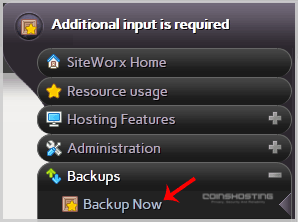
4. Select the backup type and location.
Backup Type: Full Backup.
Backup Where: Default Location.
5. Click on the Continue button.
6. Enter your e-mail address in the E-mail status to field under the Create Backup option.
7. Click on the Backup option.
You will be automatically redirected to the Management page where you can see the status of your backup progress, and you will be able to download your backup to your computer. After the SiteWorx backup is completed, you will receive a notification.
- Home
-
Store
- Browse All
- Managed cPanel Hosting
- VPS - KVM Linux Server
- VPS - KVM Linux RDP Server
- VPS - KVM Windows RDP Server
- Dedicated Servers (USA)
- Dedicated Servers (Netherlands)
- Dedicated Servers (Switzerland)
- SSL Certificates
- Linux LXC VPS Containers
- Linux KVM VPS – SolusVM
- Register a New Domain
- Transfer Domains to Us
- Announcements
- Knowledgebase
- Network Status
- Affiliates
- Contact Us
-
More